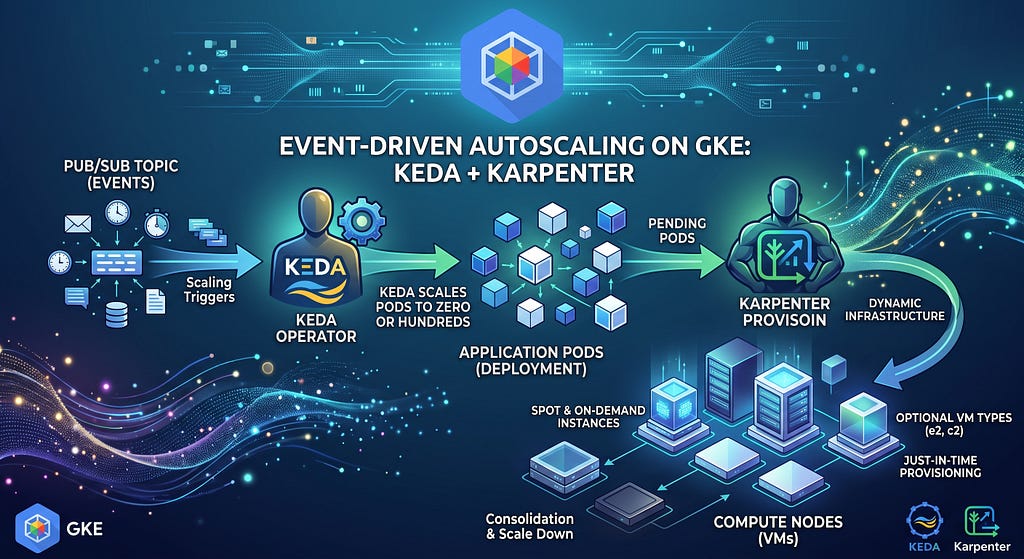
Scale pods on Pub/Sub queue depth with KEDA and provision right-sized nodes with Karpenter on GKE Standard, both dropping to zero when idle.
In this walkthrough, we’re going to combine two powerful open-source tools on Google Kubernetes Engine (GKE) to handle both layers dynamically: KEDA (Kubernetes Event-driven Autoscaling) and Karpenter.
You can find the complete code and manifests for this setup in my keda-karpenter-gke-demo repository.
The Core Concept
Here is how the two tools divide the work:
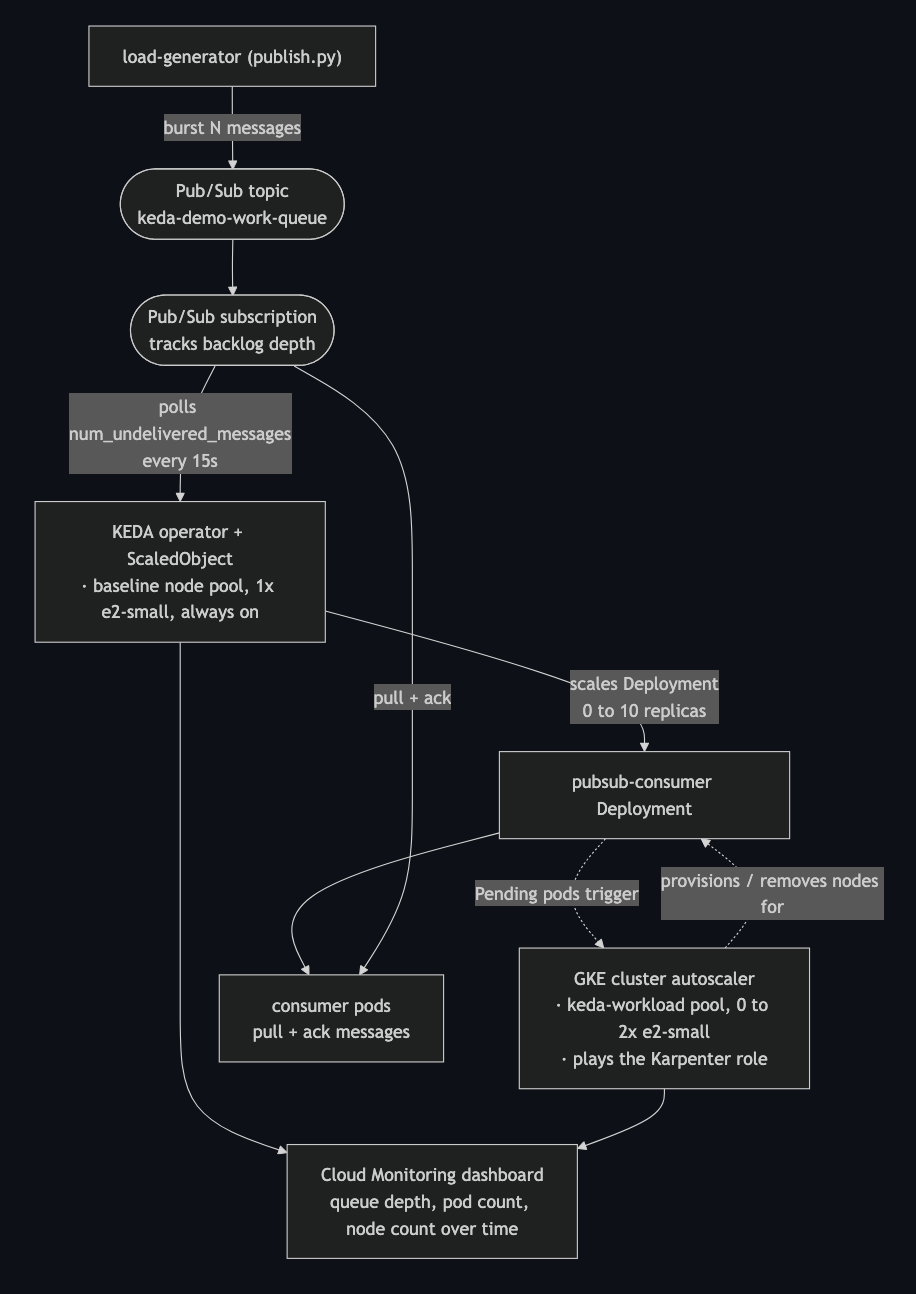
- KEDA watches an event source (like a GCP Pub/Sub topic, a RabbitMQ queue, or Prometheus metrics) and scales your workload pods based on the queue depth. It can scale pods all the way down to zero when there is no work.
- Karpenter watches for Pending pods. When KEDA scales up your application and the cluster runs out of capacity, pods go into a pending state. Karpenter immediately provisions the right-sized Google Compute Engine (GCE) VMs to fit those exact pods.
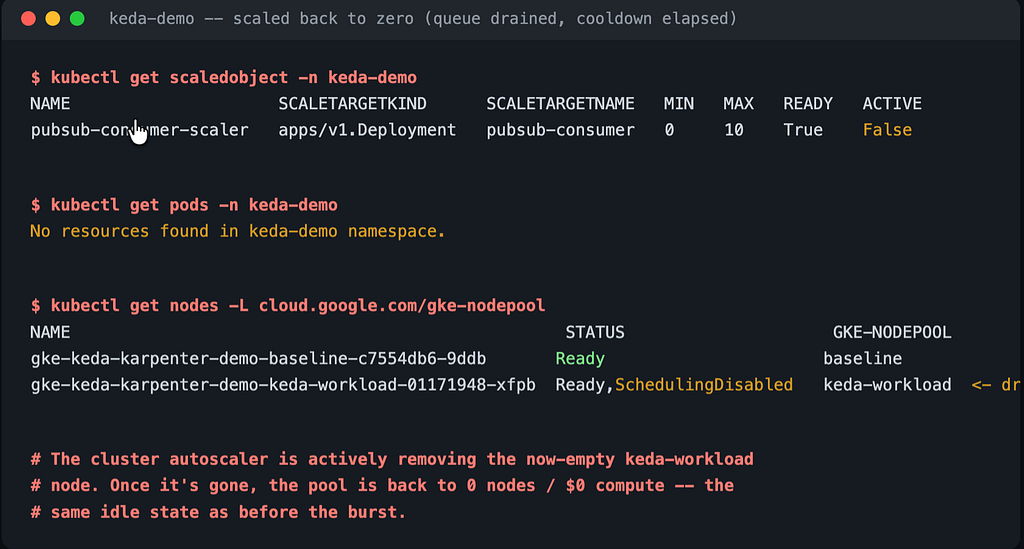
When the queue drains, KEDA scales the pods back down to zero, and Karpenter terminates the empty nodes, leaving you with zero wasted compute.
Prerequisites
Before we start, you’ll need:
- A Google Cloud Project with billing enabled.
- gcloud CLI installed and authenticated.
- kubectl and helm installed.
Step 1: Prepare the GKE Cluster
Since Karpenter directly provisions and manages nodes, we need to use a GKE Standard cluster (GKE Autopilot manages nodes for you, so Karpenter isn’t applicable there).
Let’s spin up a foundational cluster. We are keeping the default node pool small because Karpenter will handle the heavy lifting later.
export PROJECT_ID="your-gcp-project-id"
export REGION="us-central1"
export CLUSTER_NAME="karpenter-keda-demo"
# Create a standard GKE cluster with workload identity enabled
gcloud container clusters create $CLUSTER_NAME \
  --project=$PROJECT_ID \
  --region=$REGION \
  --num-nodes=1 \
  --machine-type=e2-standard-2 \
  --workload-pool=$PROJECT_ID.svc.id.goog
# Get cluster credentials
gcloud container clusters get-credentials $CLUSTER_NAME --region $REGION --project $PROJECT_ID
Step 2: Install Karpenter
Historically, Karpenter was AWS-only, but with the community-driven karpenter-provider-gcp, we can now run it natively on Google Cloud.
First, install the Karpenter Helm chart configured for GCP:
# Add the Karpenter GCP Helm repository
helm registry login -u helm -p helm oci://ghcr.io/cloudpilot-ai/karpenter-provider-gcp
helm install karpenter oci://ghcr.io/cloudpilot-ai/karpenter-provider-gcp/karpenter \
  --namespace karpenter \
  --create-namespace \
  --set settings.clusterName=$CLUSTER_NAME \
  --set settings.clusterEndpoint=$(gcloud container clusters describe $CLUSTER_NAME --region $REGION --format='value(endpoint)') \
  --wait
Once installed, we need to configure a NodePool and a GKEComputeClass. The NodePool tells Karpenter how to evaluate pending pods, while the ComputeClass tells it what kind of GCP instances it is allowed to spin up.
# karpenter-nodepool.yaml
apiVersion: karpenter.sh/v1beta1
kind: NodePool
metadata:
  name: default
spec:
  template:
    spec:
      requirements:
        - key: "karpenter.sh/capacity-type"
          operator: In
          values: ["spot", "on-demand"] # Let Karpenter provision Spot instances to save costs
        - key: "kubernetes.io/arch"
          operator: In
          values: ["amd64"]
      nodeClassRef:
        name: default
  limits:
    cpu: 100
  disruption:
    consolidationPolicy: WhenUnderutilized
    expireAfter: 720h
---
apiVersion: karpenter.gcp.sh/v1alpha1
kind: GKEComputeClass
metadata:
  name: default
spec:
  # Tag instances so they successfully join the GKE cluster
  tags:
    - "gke-karpenter-demo"
Apply this configuration:
kubectl apply -f karpenter-nodepool.yaml
Step 3: Install KEDA
Installing KEDA is straightforward using Helm.
helm repo add kedacore https://kedacore.github.io/charts
helm repo update
helm install keda kedacore/keda \
  --namespace keda \
  --create-namespace
Verify that the KEDA operator is running properly:
kubectl get pods -n keda
Step 4: Deploying the Application and Scaler
For this demo, let’s assume we have a simple worker deployment that processes messages from a queue. We want KEDA to monitor that queue.
Here is our ScaledObject. This custom resource tells KEDA exactly what to monitor and how to scale the target deployment.
# keda-scaledobject.yaml
apiVersion: keda.sh/v1alpha1
kind: ScaledObject
metadata:
  name: worker-scaler
spec:
  scaleTargetRef:
    name: message-worker-deployment
  minReplicaCount: 0  # Scale down to zero when idle
  maxReplicaCount: 50
  triggers:
    - type: gcp-pubsub
      metadata:
        subscriptionSize: "5" # Scale up for every 5 messages in the queue
        subscriptionName: "projects/your-gcp-project-id/subscriptions/worker-sub"
Apply the ScaledObject:
kubectl apply -f keda-scaledobject.yaml
Step 5: Seeing it in Action
This is where everything comes together. Let’s publish 100 messages to our Pub/Sub topic to simulate a sudden spike in workloads.
# Push 100 messages in a loop
for i in {1..100}; do
  gcloud pubsub topics publish worker-topic --message="Task $i"
done
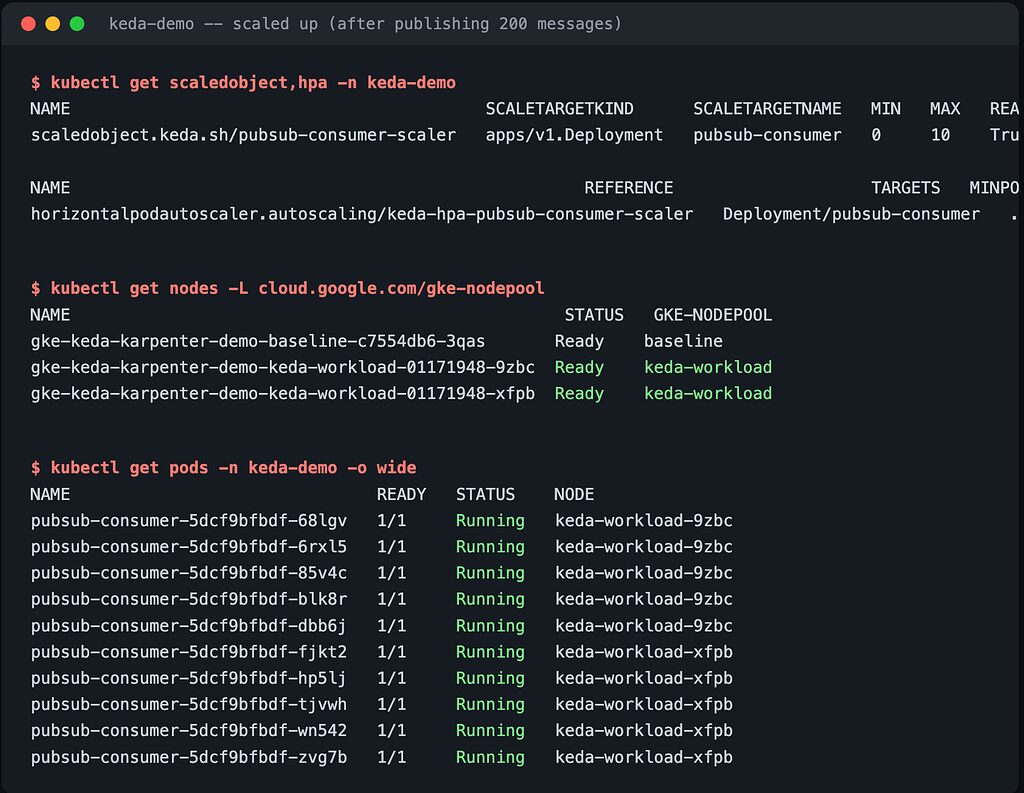
Watch the cluster react:
- KEDA notices the queue size is 100. Based on our subscriptionSize: 5, it updates the Deployment to 20 replicas.
- 20 Pods are instantly created by the deployment controller.
- Because our base node pool is tiny, most of those Pods get stuck in Pending.
- Karpenter immediately spots the Pending pods. It calculates their exact CPU and memory requests, calls the GCP API, and provisions the most cost-effective GCE instances to fit them.
Track this in real-time in two separate terminal tabs:
# Tab 1: Watch Pods
kubectl get pods -w
# Tab 2: Watch Nodes
kubectl get nodes -w
Within about 60 seconds, the new nodes join the cluster, the pods transition to Running, and the queue is processed.
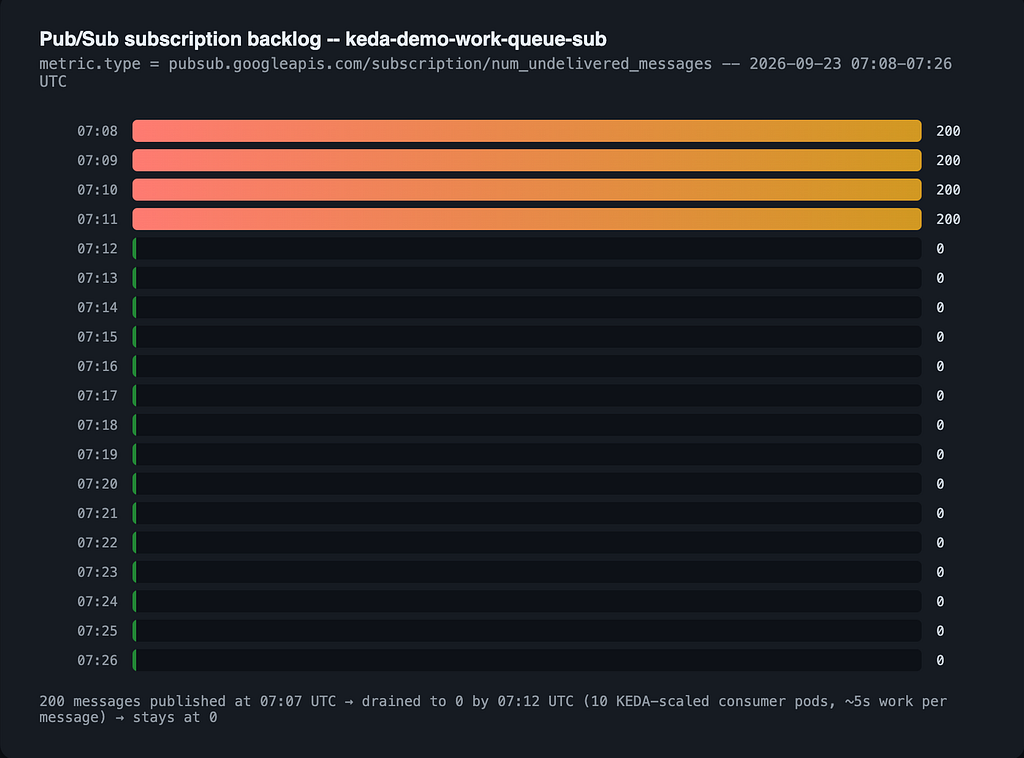
Once the queue is empty, KEDA scales the deployment back to 0 replicas. Karpenter’s consolidation logic notices the nodes are now empty and safely cordons, drains, and deletes the underlying compute instances. You stop paying for the resources the exact moment the work is done.
Frequently Asked Questions
1. Why use Karpenter instead of GKE’s native Cluster Autoscaler (CA)?
The native GKE Cluster Autoscaler works well, but it relies on pre-defined Node Pools. If you need a specific machine size or Spot instance type, you must create a node pool for it beforehand.
Karpenter takes a pool-less approach. It looks directly at the resource requests of Pending pods and dynamically provisions the most optimal Google Compute Engine (GCE) instances on the fly without requiring you to pre-configure individual node pools. It also consolidates underutilized nodes faster, saving on compute costs.
2. Can I run this exact architecture on GKE Autopilot?
You can use KEDA on GKE Autopilot without any issues, but you cannot use Karpenter.
GKE Autopilot manages node provisioning completely behind the scenes, eliminating the need for cluster autoscalers. If you want full control over VM family selection, custom node configurations, or faster group-less node consolidation using Karpenter, you must use GKE Standard.
3. Do KEDA and Karpenter ever conflict with each other?
No, because they operate on completely different layers of the Kubernetes control plane:
- KEDA manages the application layer (scaling Pod replicas up or down based on external event queues).
- Karpenter manages the infrastructure layer (scaling Node capacity up or down based on unschedulable Pods).
KEDA never provisions VMs, and Karpenter never touches your Deployment replica counts. They work in tandem: KEDA creates the demand, and Karpenter provisions the capacity.
4. How do you handle cold start latency when scaling from zero?
When your workload scales to zero, Karpenter eventually terminates the unneeded nodes. When a new event arrives:
- KEDA immediately scales the deployment from 0 to 1+ pods.
- The pod goes into Pending state because there are no available nodes.
- Karpenter detects the pending pod and requests a new VM from GCP (typically taking 30 to 60 seconds to boot).
- The pod gets scheduled and pulls the container image.
If your application cannot tolerate a ~1-minute cold start for the initial batch, set minReplicaCount: 1 in your KEDA ScaledObject or keep a small, cheap fallback node running in a default node pool.
5. How should I handle GCP security and IAM permissions for KEDA?
Avoid using static GCP service account keys (.json credential files). Instead, use GKE Workload Identity:
- Create a Google IAM Service Account (GSA) with read permissions to your Pub/Sub topic/subscription.
- Create a Kubernetes Service Account (KSA) in the namespace where KEDA or your workload runs.
- Annotate the KSA to bind it to the GSA.
This allows KEDA operator pods to authenticate securely with GCP APIs using short-lived tokens, adhering to the principle of least privilege.
Wrap Up
Combining KEDA and Karpenter transforms a static GKE cluster into a highly responsive, workload-driven engine. You get the operational simplicity and cost benefits of serverless computing — scaling to zero and paying only for what you use — while retaining full control over your infrastructure, instance types, and networking.
For the full codebase, YAML manifests, and extra configuration options, grab the code directly from the GitHub repository.
If you set this up in your own environment, drop a comment below on how it affects your workflow and cloud bill!
📢 Have questions or feedback? Drop a comment below or connect with me on Twitter/X@spysood!
Originally published on Medium.